


The developer of RegCleaner, jv16 PowerTools, Uninstalr, WinFindr, Startup Timer, ScreenshotX, System Examiner and Windows Update Fixer.
Nobody wakes up one morning and thinks, “You know what would really spice up my Tuesday? Figuring out how to uninstall Roblox.” It’s always born from desperation – a janky update, a corrupted file, or just a moment of clarity after your little cousin filled your account with garbage. Whatever reason brought you here, I’m here to help you out.
A fair warning, though: it’s rarely as simple as clicking one button. Windows has a talent for leaving behind orphaned files, sneaky cache folders, and registry entries. This guide walks through every removal method I know, from the lazy-but-fast approach to a proper deep clean, so you can choose your level of commitment. I’ll even tell you what to do when Roblox not uninstalling becomes a sudden plot twist.
Table of Contents
How to uninstall Roblox
Method 1: Uninstall Roblox using Windows Apps & Features
This is the classic, “please just work” method. Here’s how:
- Hit the Start button > select Settings > select Apps, then Installed apps.
- Look up in the search box or scroll down until you spot Roblox > click the three dots next to the name.
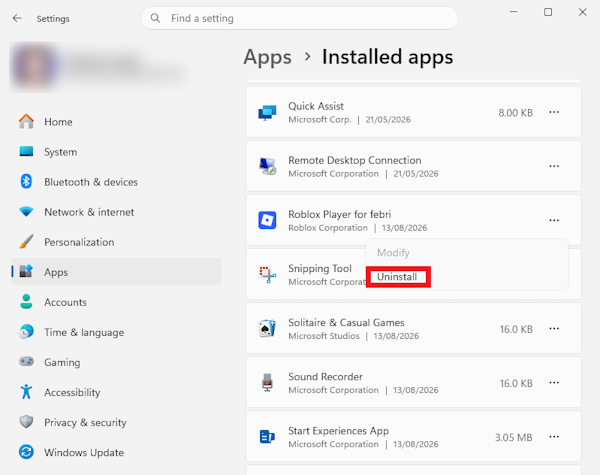
- Click Uninstall, and let the uninstallation process happen.
Pros: it’s quick, you don’t have to download anything, and it removes the core application files. Cons: it often leaves behind a trail of data, such as cache folders, log files, registries… all hunkering down in hidden directories like squatters. Just take a look at the leftovers found with WinFindr below.
Disclaimer: WinFindr is software I developed, but you can always use another Windows search app to look for leftovers if you prefer.
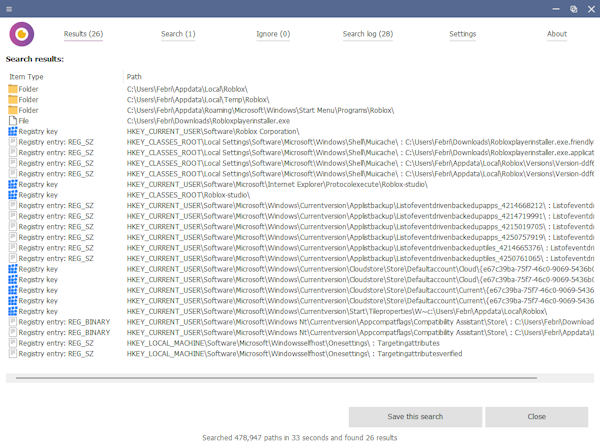
If you’re just looking to delete Roblox and never think about it again, this might suffice. But if you’re here because the game glitched, don’t be surprised when you reinstall and your old settings magically reappear.
Method 2: Uninstall Roblox using Control Panel
Instead of uninstalling from Settings, you can also uninstall Roblox from Control Panel:
- Open Control Panel by typing control panel into the Start menu.
- In the new window, head to Programs > Uninstall a program.
- Find Roblox in the list, right-click it, and choose Uninstall.
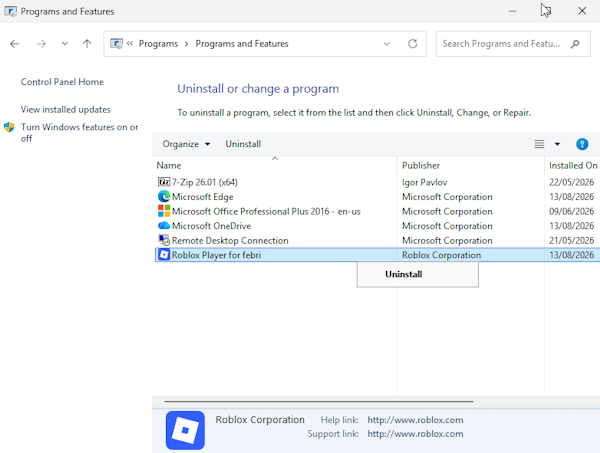
Just like uninstalling Roblox from Settings, this method is basically Windows asking Roblox’s uninstaller to uninstall the program. That’s why after uninstallation finishes, I’d recommend checking for leftovers.
Method 3: Uninstall Roblox using a third-party uninstaller
If you want Roblox gone properly, not just off the Start menu, it’s time to bring out the real deal: a trusted third-party uninstaller like Uninstalr. It won’t get you to zero — nothing does — but it gets a lot closer.
Full disclosure: I develop Uninstalr, so I have a vested interest here. However, I believe in being transparent about why specialized uninstaller tools like Uninstalr exist.
Here’s how you can uninstall Roblox using Uninstalr:
- Back up anything important. Here’s our take on doing that properly if you don’t already have a system: https://uninstalr.com/blog/3-2-1-backup-strategy-explained/
- Run Uninstalr; this will automatically prompt a system scan. Wait until the scan process finishes.
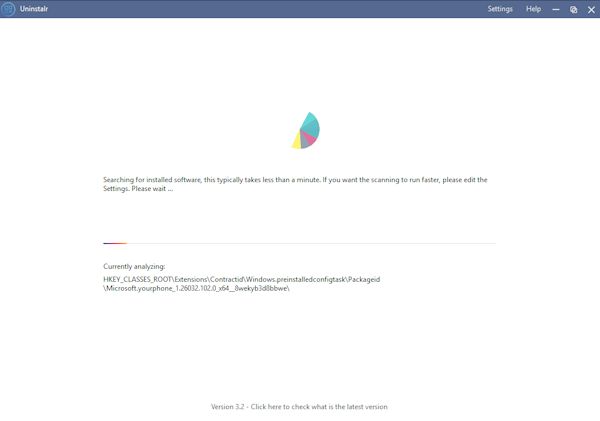
- In the new screen, look up “Roblox” in the list of installed apps. Click from the list and then hit the “Uninstall” button.
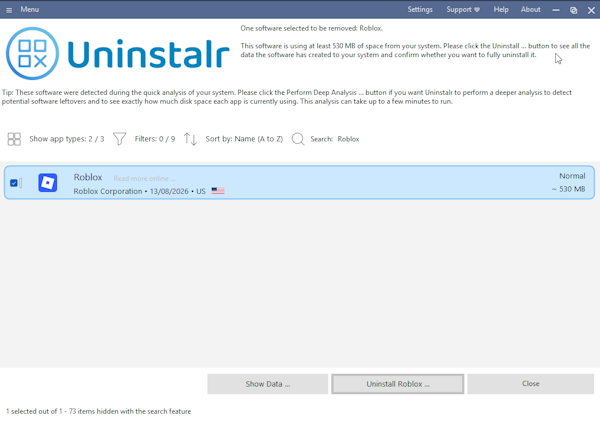
- Uninstalr will analyze the system and look for all data related to Roblox.
- Once it’s done, a new screen will appear. Here you can review the data that will be removed after uninstallation. Please review the list carefully. You can exclude any data that shouldn’t be removed by Uninstalr by unticking it from the list.
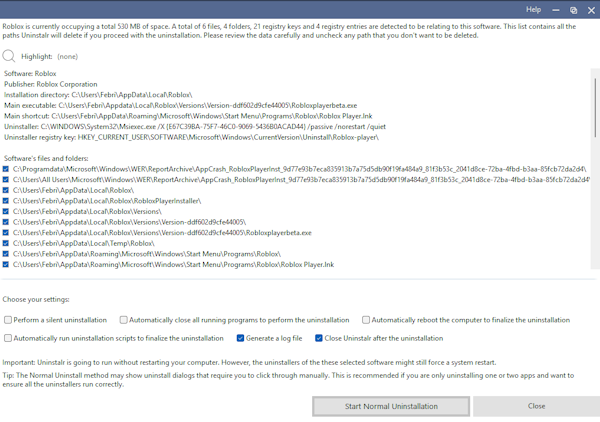
- You can also review what Uninstalr should or shouldn’t do during the uninstallation by ticking and unticking the options under the list. If everything looks good, you can click the “Start Uninstallation” button to begin the uninstallation process.
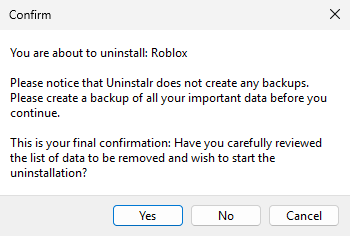
- A new warning will pop up to make sure that you’ve created a backup and reviewed the data carefully. Please review carefully. When everything looks good to you, click the “Yes” button to proceed.
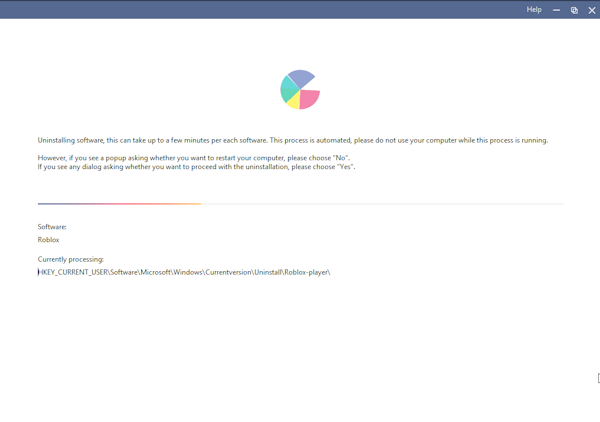
- Uninstalr will start the uninstallation process. Wait until this finishes. If you tick the “Automatically restart the computer” option, your computer will restart two times – once to remove files that are locked while Windows is running, and once to verify nothing was left behind.
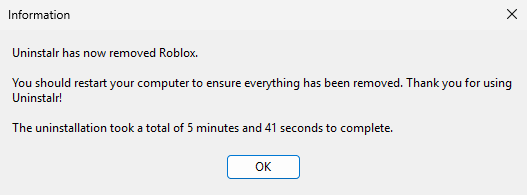
- When the uninstallation process completes, Uninstalr will give a heads-up that Roblox has been removed.
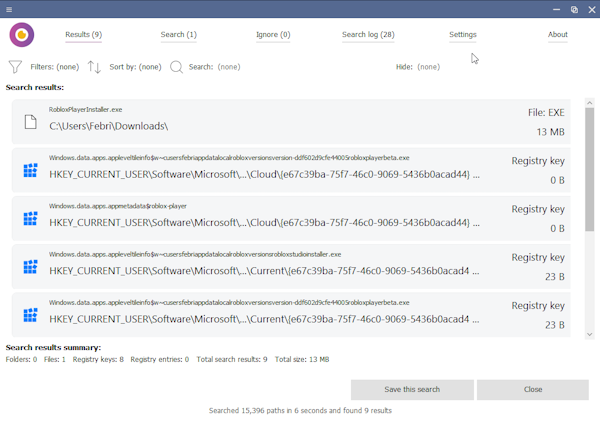
After Uninstalr’s uninstallation, I checked for leftovers using WinFindr and found 9 items – 8 registry entries and the RobloxPlayerInstaller.exe I’d downloaded myself, which no uninstaller should touch. The previous two methods left 26.
If you’re struggling with Roblox’s leftovers, this method gets you noticeably closer to a clean removal. This is because Uninstalr scans for leftover registry entries and leftover files after the standard uninstaller has finished its half-hearted job. The only downside is the extra step of installing another program, but in my opinion, once you’ve used a deep-cleaning uninstaller, you’ll start judging every other removal method.
What if Roblox refuses to uninstall?
Usually this happens because a background process is still running. When you experience this, open Task Manager (Ctrl+Shift+Esc) and kill anything with “Roblox” in its name. Then try to uninstall again. Sometimes Windows does this because it thinks the Roblox file is in use, and a quick restart should fix the issue. If that fails, boot into Safe Mode and run the uninstaller from there; nothing hides from Safe Mode.
I’ve also seen cases where a half-baked update left an app uninstaller broken, so you might need to reinstall Roblox just to uninstall it properly. And if all else fails, you can try Uninstalr to uninstall Roblox when the official uninstaller is corrupted.
Final thoughts
There they are: three ways to uninstall Roblox, plus a few rescue tricks for when things go sideways. The method you choose depends on how thoroughly you want to scrub.
If you want quick and don’t want to install anything extra, Windows Settings or Control Panel will do the job – just know they left 26 items behind in my test.
If you want a cleaner removal, I’d recommend Uninstalr. It got that 26 down to 9 – and 8 of those were registry entries. No uninstaller gets you to zero. This one gets closer.
Uninstalr is free to download at https://uninstalr.com/