


The developer of RegCleaner, jv16 PowerTools, Uninstalr, WinFindr, Startup Timer, ScreenshotX, System Examiner and Windows Update Fixer.
Microsoft Office refers to a range of productivity apps developed by Microsoft. It consists of Microsoft Word, Excel, PowerPoint, Outlook, OneNote, and some other apps. Microsoft Office isn’t free to use and you’ll need to either buy a one-time license purchase of Office or buy a Microsoft 365 subscription.
There are some reasons why people want to uninstall Microsoft Office such as:
- They want to switch to other productivity suite products
- Pricing concerns
- They want to free up disk space by uninstalling some (or all) of Microsoft Office products
- They want to upgrade their product versions or fix issues with their existing Microsoft Office apps
- They used a trial version of Microsoft Office and the trial period has ended
- They’re leaving a job or graduating from school and they need to clean install their work or school computers
In this article, we’ll cover how to uninstall Microsoft Office including a guide on uninstallation steps, some considerations before uninstallation, and how to reinstall Microsoft Office.
Table of Contents
Important considerations before uninstalling Microsoft Office
Before you uninstall Microsoft Office, there are some things that you need to consider such as:
1. Create a backup of your important data
It’s important to create a backup of your important files prior to uninstallation. That way, in case something happens during the uninstallation process, you won’t lose your data.
2. Make sure you can sign in to the Microsoft Office setup page
In the case where you need to reinstall Microsoft Office after uninstallation, you’ll be prompted to log in to the Office page using a Microsoft account you used to sign in for the first time (after redeeming your product key). You need to remember which account you used and make sure that you have access to that account.
3. Understand your Microsoft Office installation type
There are different ways to uninstall Microsoft Office from Windows depending on the type of installation, so you’ll need to understand which app installation type your Office has. If you’re not sure about the install type, you can find out using the following steps:
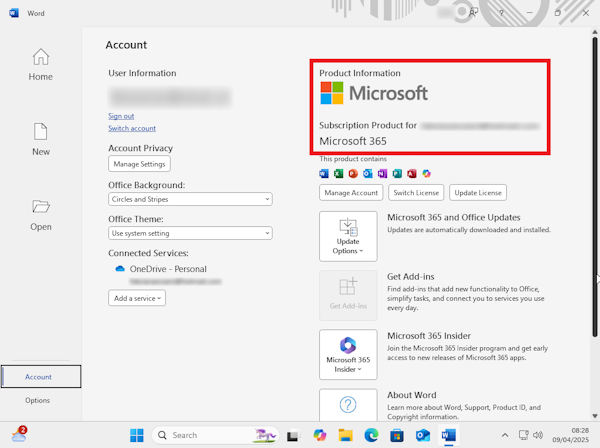
- Open any one of Microsoft Office apps, like Microsoft Word for example > click “Account” on the bottom left of the page
- In the new Account window, take a look at the “Product Information” menu. You’ll see the install type next to the “About Word” option

There are three types of installation types: Click-to-Run, Microsoft Windows Installer (MSI), and Microsoft Store app. The first two are the most common installation types.
4. Take note of your Microsoft Office version
In addition to installation types, you need to also take note of the Microsoft Office version you want to uninstall. This is because Microsoft differentiates the uninstallation steps based on which install type and product version you have.
For example, you can only uninstall Office 2024 with Click-to-Run and MSI install types from Control Panel or Windows Settings. Otherwise, If you want to uninstall Microsoft 365, Office 2021, Office 2019, or Office 2016 that have Click-to-Run or MSI installation, you’ll need to use their own uninstall tool called uninstall troubleshooter.
If you don’t know which Microsoft Office version you have, you can find out using the following steps:
- Open any one of Microsoft Office apps, like Microsoft Word for example > click “Account” on the bottom left of the page
- In the new Account window, take a look at the “Product Information” menu. There, you’ll find out about your Office product version
How to uninstall Microsoft Office from Windows
As mentioned in the above section, there are different ways to uninstall Microsoft Office depending on the install type. You’ll need to find out which install type your Microsoft Office apps have and their product versions before proceeding with the uninstallation. Please review the steps in the previous section for more information.
Uninstalling Microsoft Office from Control Panel
The following steps are applicable if you want to uninstall Microsoft 365 or Office 2024 and have Click-to-Run or MSI installation types. Here’s how you can uninstall Microsoft Office from Control Panel:
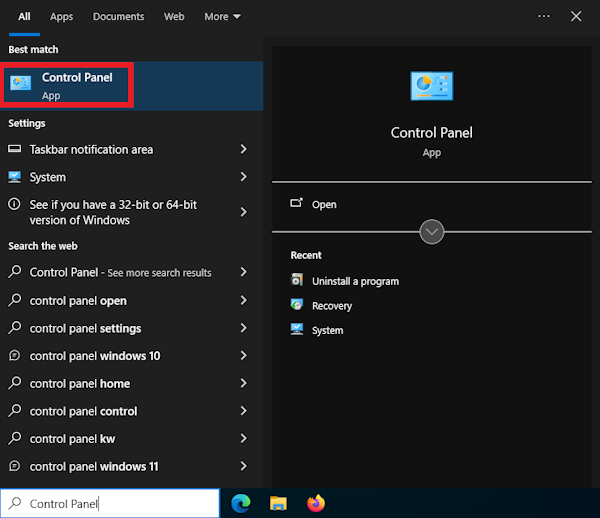
- Access Control Panel by looking up “Control Panel” from the Windows search bar > click from the search results
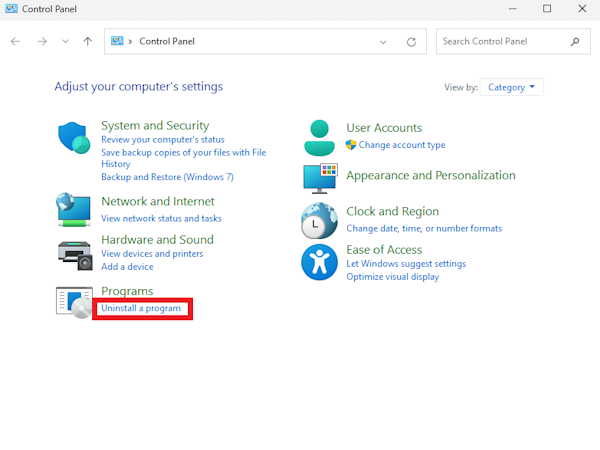
- Select Programs > Uninstall a program
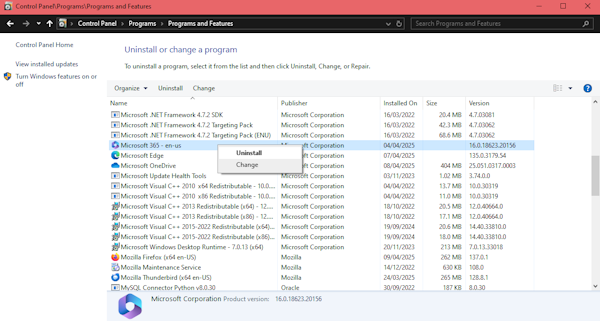
- Right-click on the Microsoft Office app you want to uninstall > Select “Uninstall”
- Follow the instructions to finish the uninstallation process
Uninstalling Microsoft Office from Windows Settings
The following steps are applicable if you want to uninstall Microsoft 365 or Office 2024 and have Microsoft Store installation type. Here’s how you can uninstall Microsoft Office from Windows Settings:
- Access Windows Settings by looking up “Settings” from the Windows search bar > click from the search results
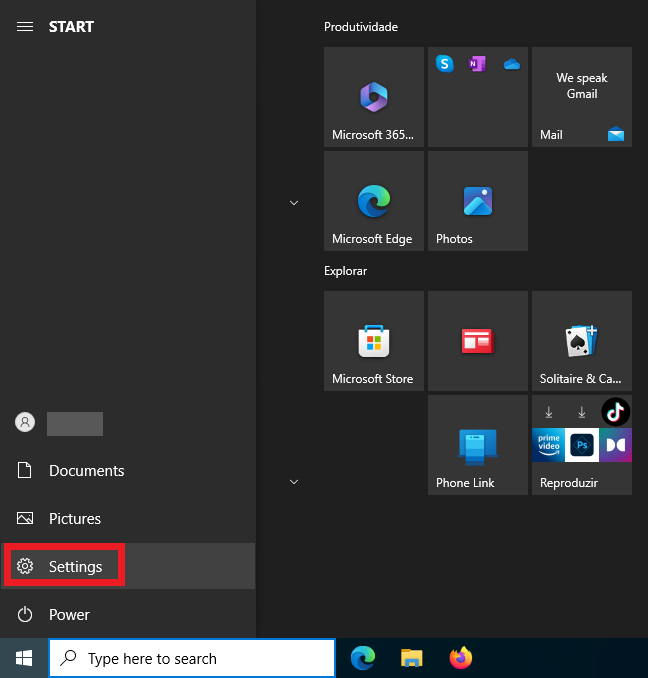
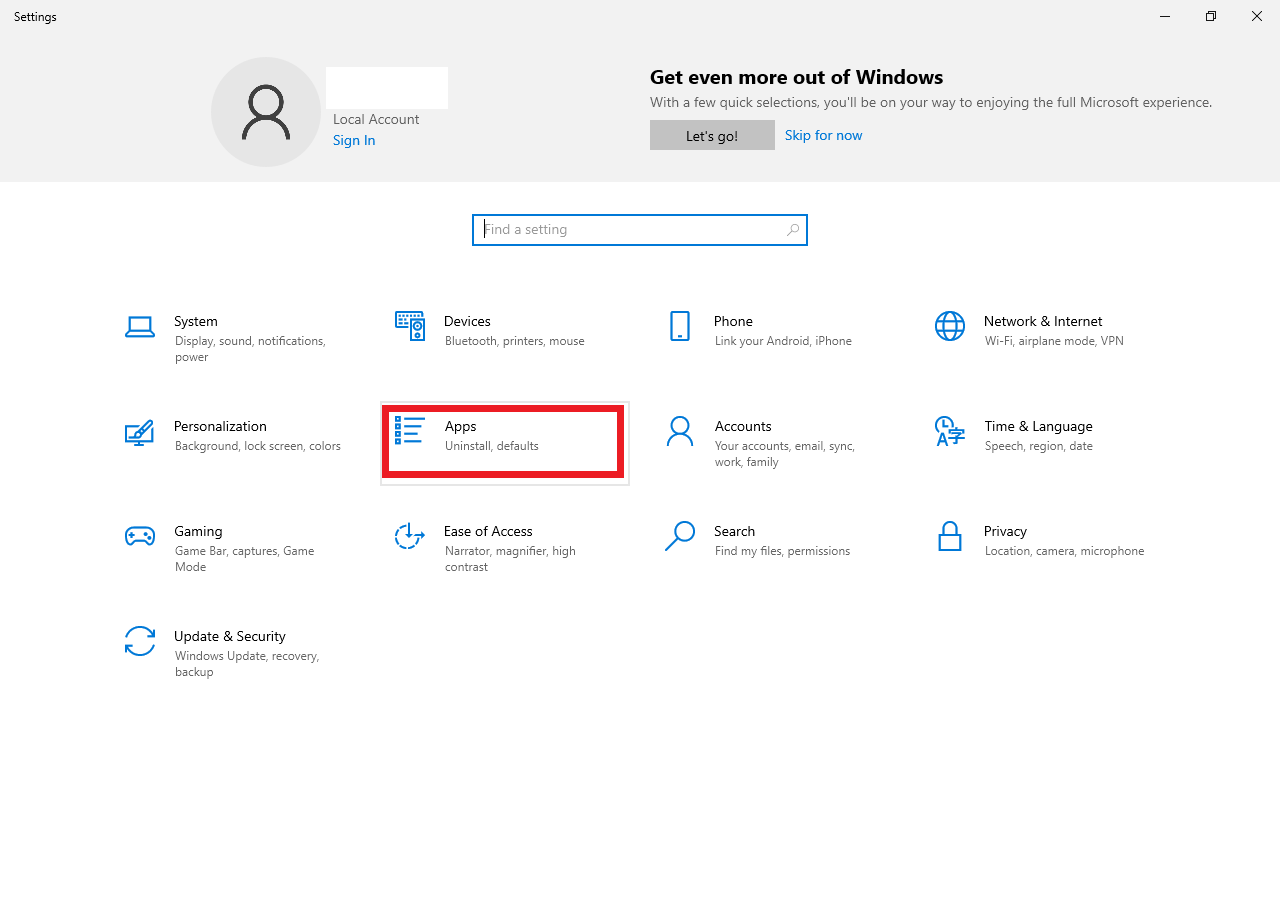
- Select Apps > Apps & features
- Look up any Microsoft Office app you want to uninstall in the search bar > click from the search results > click the “Uninstall” button

- Follow the instructions to finish the uninstallation process
Uninstalling Microsoft Office using uninstall troubleshooter
These steps are applicable if you want to uninstall Microsoft 365, Office 2021, Office 2019, Office 2016, and have Click-to-Run or MSI installation. Bear in mind that you need to have a Windows 10 or later version if you want to use this uninstall tool. Here’s how you can uninstall Microsoft Office using uninstall troubleshooter:
- Run uninstall troubleshooter by clicking the “Uninstall” button on this Microsoft Support page. You can also click the following link: https://aka.ms/SaRA-officeUninstallFromPC
- Click “Open Get Help” if you see a pop-up asking you to open Get Help

- Follow the instructions to finish the uninstallation process. Please keep in mind that your computer may restart after uninstallation
Uninstalling Microsoft Office using PowerShell
These steps are applicable if you want to uninstall Microsoft 365 and have Microsoft Store installation type. Here’s how you can uninstall Microsoft Office using PowerShell:
- Open PowerShell by looking up “PowerShell” from the Windows search bar > right-click from the search results > select “Run as administrator”
- Type in the following in the Windows PowerShell window:
Get-AppxPackage -name “Microsoft.Office.Desktop” | Remove-AppxPackage- Hit Enter and wait until the uninstallation process finishes
You can verify if Microsoft 365 is successfully removed by doing the following:
- Type in the following in the Windows PowerShell window:
Get-AppxPackage -name “Microsoft.Office.Desktop”- Hit Enter
- If you only see a command prompt appearing with no additional information, then it means that Microsoft 365 has been successfully removed
Uninstalling Microsoft Office manually
These steps are applicable to the following situations:
- You want to uninstall older Office versions, such as Office 2007, Office 2010, and Office 2013
- You’re unable to uninstall Microsoft 365 or Microsoft Office using uninstall troubleshooter
Bear in mind that manual uninstallation is a long and complicated process, and if you make any mistakes while doing this, you may need to reinstall Windows. Please proceed with caution and only do this if you know what you’re doing.
You can visit this Microsoft Support page to find out more details on manually uninstalling Office.
Uninstalling Microsoft Office using Uninstalr
If you want a straightforward way to uninstall Microsoft Office, you can opt for a trusted third-party uninstaller such as Uninstalr. With Uninstalr, you can easily uninstall Microsoft Office with a few clicks, and you don’t need to do manual deletion to clean up leftovers after uninstallation.
Here’s how you can uninstall Microsoft Office using Uninstalr:
- Back up your important data as a safety precaution
- Run Uninstalr, this will automatically prompt a system scan. Wait until the scan process finishes

- In the new screen, look up Office in the list of installed apps. Click the name from the list and then hit the “Uninstall” button
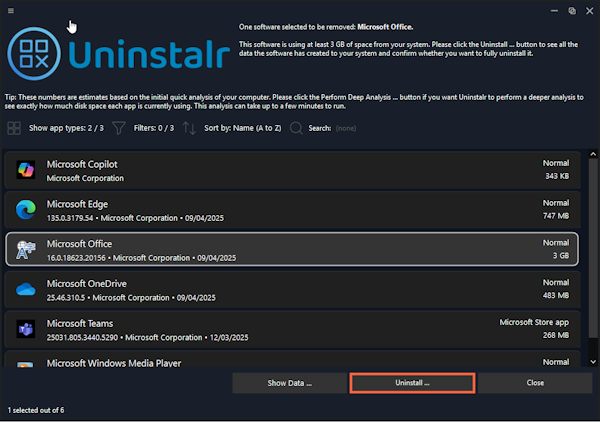
- Uninstalr will analyze the system and look for all data related to Office
- Once it’s done, a new screen will appear. Here you can review the data that will be removed after uninstallation. Please review the list carefully. You can exclude any data that shouldn’t be removed by Uninstalr by deleting them from the list. You can also review what Uninstalr should or shouldn’t do during the uninstallation by ticking and unticking the options under the list. If everything looks good, you can click the “Start Uninstallation” button to begin the process

- A new warning will pop up to make sure that you’ve created a backup, reviewed the data carefully, and applied the appropriate options on what Uninstalr should and shouldn’t do. Please review the list carefully and only proceed when you’re okay with all of these. When everything looks good to you, click the “Yes” button to proceed

- Uninstalr will start the uninstallation process. Wait until this finishes. If you tick the “Automatically restart the computer” option, your computer will restart two times after uninstallation to ensure all of the data has been successfully removed

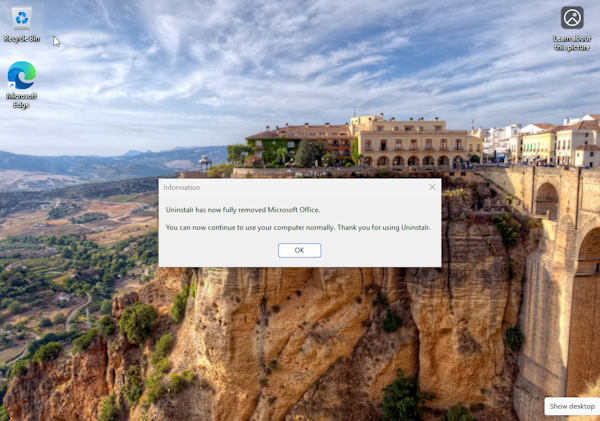
- When the uninstallation process completes, Uninstalr will give a heads-up that Office has been removed
Reinstalling Microsoft Office
Before reinstalling Microsoft Office, you need to remember which Microsoft account you used to log into Office. If you’re unsure which account you used, you can visit this Microsoft Support page to find out.
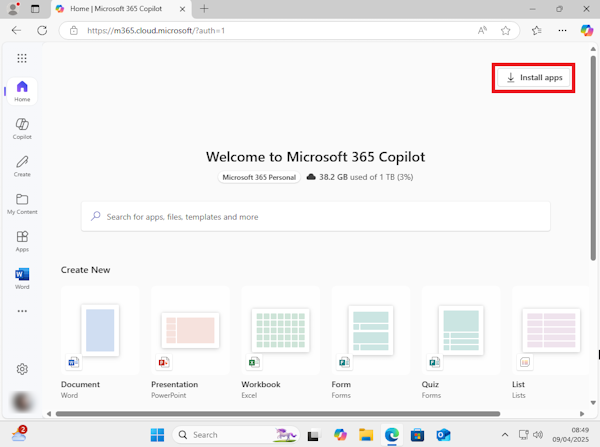
The reinstallation process is very straightforward. All you need to do is visit the Office page: https://www.office.com/ and then sign in with the Microsoft account you used to activate your product key for the first time. Once you’re logged in, you can simply click the “Install apps” button and then follow the prompts to complete the reinstallation process.
Conclusion
Microsoft recommends different ways to uninstall Microsoft Office depending on the install type and product version. The uninstallation steps aren’t very complicated, but you’ll need to determine the right method before performing the uninstall process.
Also, uninstalling Microsoft Office using built-in Windows uninstallers typically leaves the usual problem of having leftovers after uninstallation. If you’re an advanced user, you can manually delete the leftovers, but otherwise, we don’t recommend this as the steps are complicated and you’ll risk causing major issues to your system.
With Uninstalr, you can automatically uninstall Microsoft Office and solve the leftover issue at the same time. All you need to do is to run the app, double-check the items that will be deleted, and wait until the uninstallation process completes. It’s an easy and safe way to uninstall difficult apps, including Microsoft Office – as long as you’re careful while using it.
You can try Uninstalr by downloading it for free from https://uninstalr.com/. It’s available in both Setup and Portable versions.