


The developer of RegCleaner, jv16 PowerTools, Uninstalr, WinFindr, Startup Timer, ScreenshotX, System Examiner and Windows Update Fixer.
Are your Steam games quickly filling up your storage space? One of your games is wonky, so you want to uninstall and see whether it fixes the issue?
No matter what reason you want to uninstall a Steam game, this article is here to guide you through the process.
Here, we’ll give some different methods to try, along with a step-by-step guide on how to uninstall a Steam game on Windows.
Table of Contents
Why Uninstall Steam Games?
In case you second-guess yourself and think whether you absolutely need to uninstall the Steam game, you can quickly review some cases below.
Some reasons why gamers want to uninstall Steam games are:
- Free up disk space by removing large items, such as Steam games.
- Improve computer system performance by freeing up disk space.
- Troubleshoot issues with the game by uninstalling and reinstalling it.
- Prepare some space for new game installations.
What to do before uninstalling a Steam Game
Before uninstalling a Steam game, you need to make sure that you have created a backup of important data. There’s always a chance that things don’t go according to your plan, so it’s super important to create a backup before performing the uninstallation.
Also, you need to keep in mind that uninstalling a Steam game will remove all of the progress made within the game. If you want to uninstall a Steam game without losing your progress and achievements, you need to make sure that Steam Cloud is enabled. Here’s how:
- Login to your Steam Client.
- Click the Steam menu on the top left > select Settings.
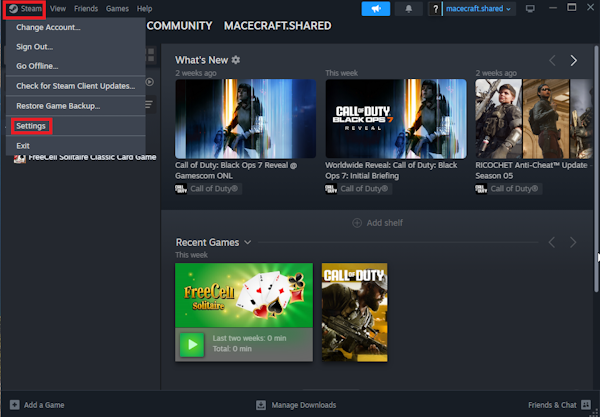
- In the new Steam Settings window, select “Cloud” from the left sidebar > toggle on the Enable Steam Cloud option.

In addition, you can also backup the saved files that are stored locally in your computer. They’re usually saved in C:\Program Files (x86)\Steam\userdata or in the Users folder
How to Uninstall a Steam Game
There are some methods you can use to uninstall a Steam game, such as through the Steam Client, Windows Settings, Control Panel, manual file deletion, or a third-party uninstaller app like Uninstalr. Here’s how.
Uninstall Through Steam Client
This is the most common way for people to uninstall a Steam game. Here’s how to uninstall a Steam game from the Steam Client:
- Login to your Steam Client.
- Go to the Steam Library section.
- In the Steam Library, choose the game you want to uninstall and right click on the game > select the Manage menu > “Uninstall”.

- Confirm that you want to uninstall the game by clicking the Uninstall button.
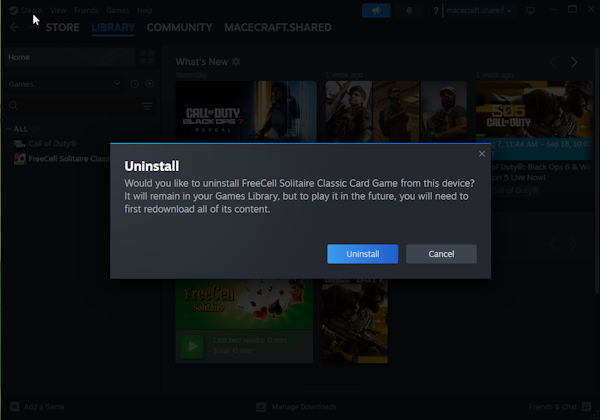
- Wait until the uninstallation process completes.
Uninstall Through Windows Settings
Another way to uninstall a game from Steam is through Windows Settings. This method is applicable to both Windows 10 and Windows 11 users. Here’s how.
- Open Windows Settings by hitting the Windows button + I or click the Windows icon > select Settings.
- In the new Windows Settings window, choose “Apps” > Installed apps.
- Look up the game you want to uninstall in the search box.
- When you find it, click the three dots next to the game name and select “Uninstall”.
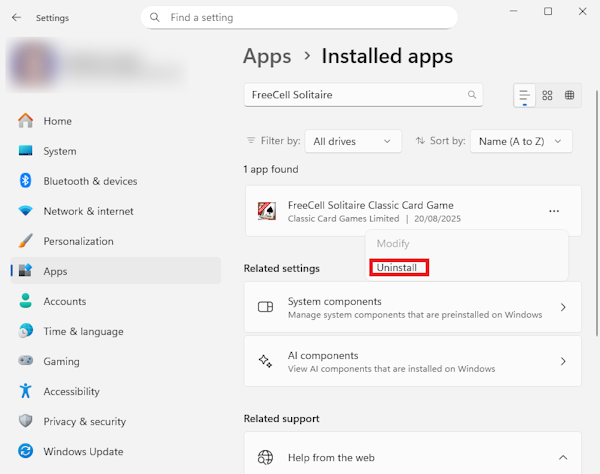
- Confirm uninstallation by clicking the “Uninstall” button again.
- Wait until the uninstallation process completes.
Uninstall Through Control Panel
Another method for uninstalling a Steam game is through the Control Panel. Just like the above method, this method is available for both Windows 10 and Windows 11 users. Here’s how.
- Open Control Panel by typing in “Control Panel” in the Windows search bar > click from the search results.
- Under the Programs menu, select Uninstall a program.
- Look up the game you want to uninstall from the list of installed programs. Once you find it, double-click to uninstall the game.
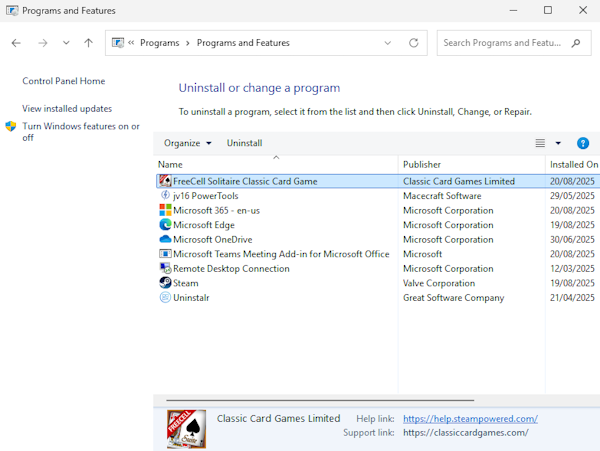
- Wait until the uninstallation process completes.
Uninstall By Manually Deleting Game Files
Before we jump into this method, please note that deleting the wrong files in your C: folder could result in a serious error in your computer system. Please only proceed if you know what you’re doing. Here’s how you can uninstall a Steam game by manually deleting the game files.
- Make sure that you completely close the Steam app.
- Open File Explorer > open the C: folder > select Program Files (x86) > select Steam.

- Inside the Steam folder, search for the steamapps folder > select common folder.
- In the common folder, you should find folders containing the games you installed on Steam. Right-click the game folder that you want to delete > select “Delete”.
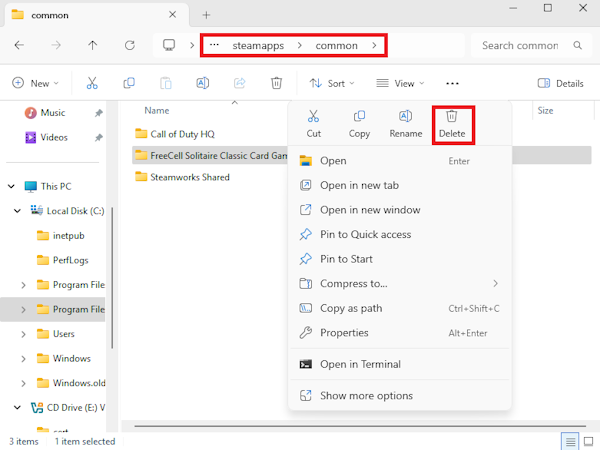
- If you want to completely remove the traces from the game, you can also delete the saved files of the game. You can access and delete the saved files in the Saved Games folder, AppData folder, or Document folder in C: drive inside the Users folder.
Uninstall a Steam Game Using Uninstalr
The methods for uninstalling a Steam game above have their own limitations. If you uninstall a Steam game through the Steam library, Windows Settings, or Control Panel, there’s a chance that there are leftover files remaining.
This is why we’d like to propose another method: uninstall using a third-party uninstaller like Uninstalr. Here’s how.
- Back up your important data as a safety precaution.
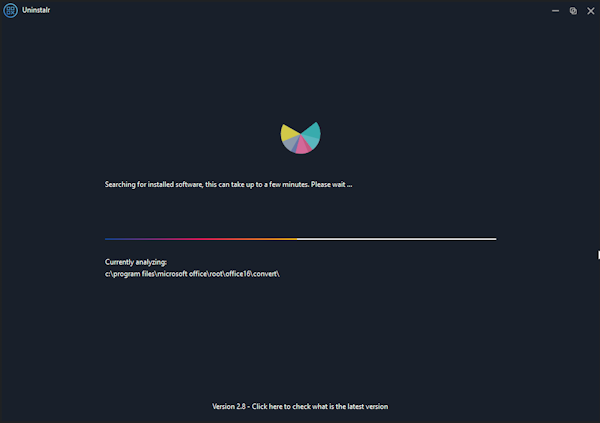
- Run Uninstalr, this will automatically prompt a system scan. Wait until the scan process finishes.
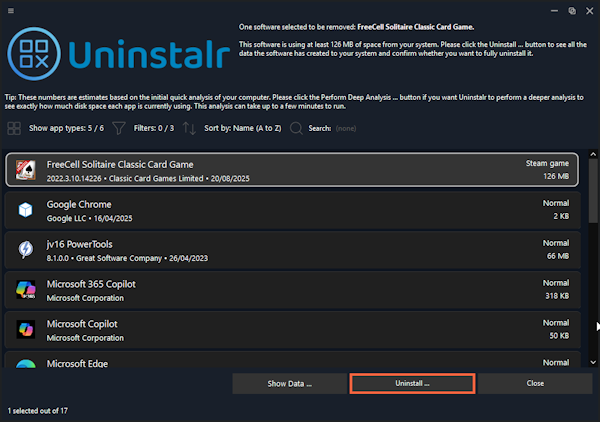
- In the new screen, look up or select the Steam game you want to uninstall in the list of installed apps. Click the name from the list and then hit the “Uninstall” button.
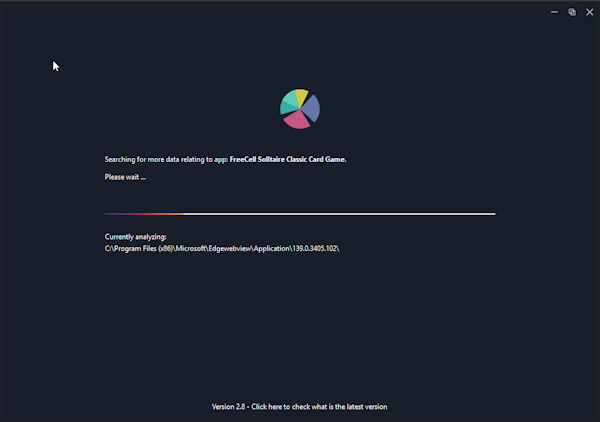
- Uninstalr will analyze the system and look for all data related to the Steam game.
- Once it’s done, a new screen will appear. Here you can review the data that will be removed after uninstallation. Please review the list carefully. You can exclude any data that shouldn’t be removed by Uninstalr by deleting it from the list.

- You can also review what Uninstalr should or shouldn’t do during the uninstallation by ticking and unticking the options under the list. If everything looks good, you can click the “Start Uninstallation” button to begin the uninstallation process.
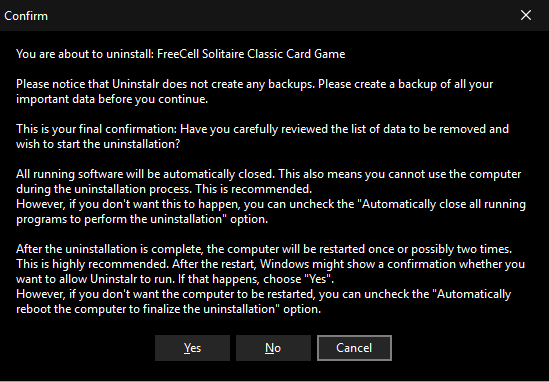
- A new warning will pop up to make sure that you’ve created a backup, reviewed the data carefully, and applied the appropriate options on what Uninstalr should and shouldn’t do. Please review the list carefully and only proceed when you’re okay with all of these. When everything looks good to you, click the “Yes” button to proceed.
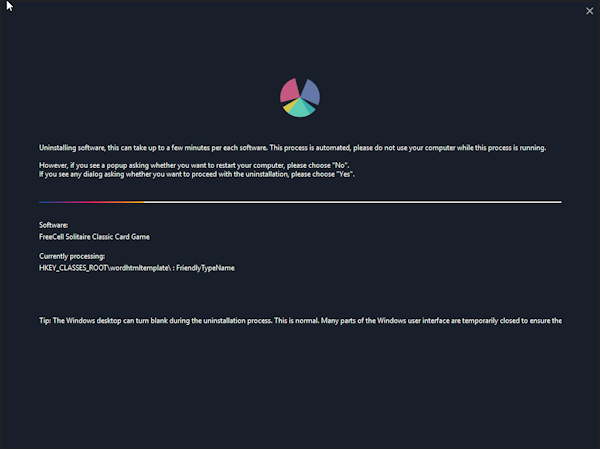
- Uninstalr will start the uninstallation process. Wait until this finishes. If you tick the “Automatically restart the computer” option, your computer will restart two times after uninstallation to ensure all of the data has been successfully removed.
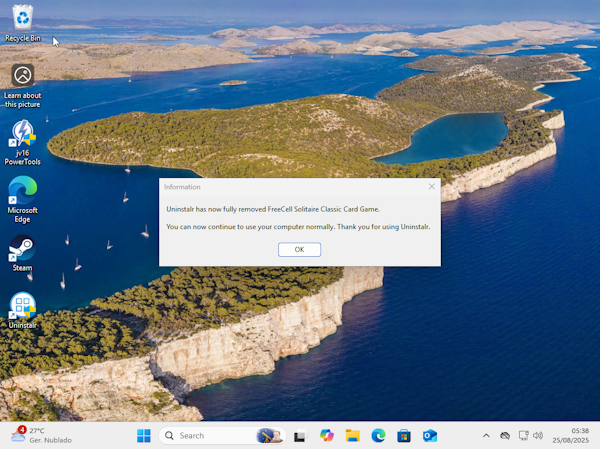
- When the uninstallation process completes, Uninstalr will give a heads-up that the Steam game has been removed.
Conclusion
There are different methods on how to uninstall a Steam game, such as uninstalling from the Steam Library, Windows Settings, Control Panel, manually deleting game files, and using a third-party uninstaller.
Each method has its own pros and cons. Uninstalling from Steam Library, Windows Settings, and Control Panel are easy, but they won’t completely remove all of the Steam game-related data.
Manually deleting the game files could ensure that all of game-related data are fully removed, but it’s risky and can be daunting for non-advanced users.
Third-party uninstaller apps like Uninstalr is an alternative you can try. Uninstalr’s uninstallation process is straightforward, and the tool is designed to thoroughly remove any app and its related files. Since Uninstalr is thorough, it’s super important to take safety precautions such as creating backups and carefully review the items that will be removed.
You can download Uninstalr as a Portable or Setup version for free from its website: https://uninstalr.com/